
iFrame Docking
# iFrame Docking
# Display Effect
Enterprises can embed the self-developed business operation page into the right side of the Sobot agent workbench, the CRM customer details page or the Call Center talk details page in the form of iFrame as a separate menu bar. Common business operation pages include ticket submission page, user profile page, user history order page, and user history ticket page.
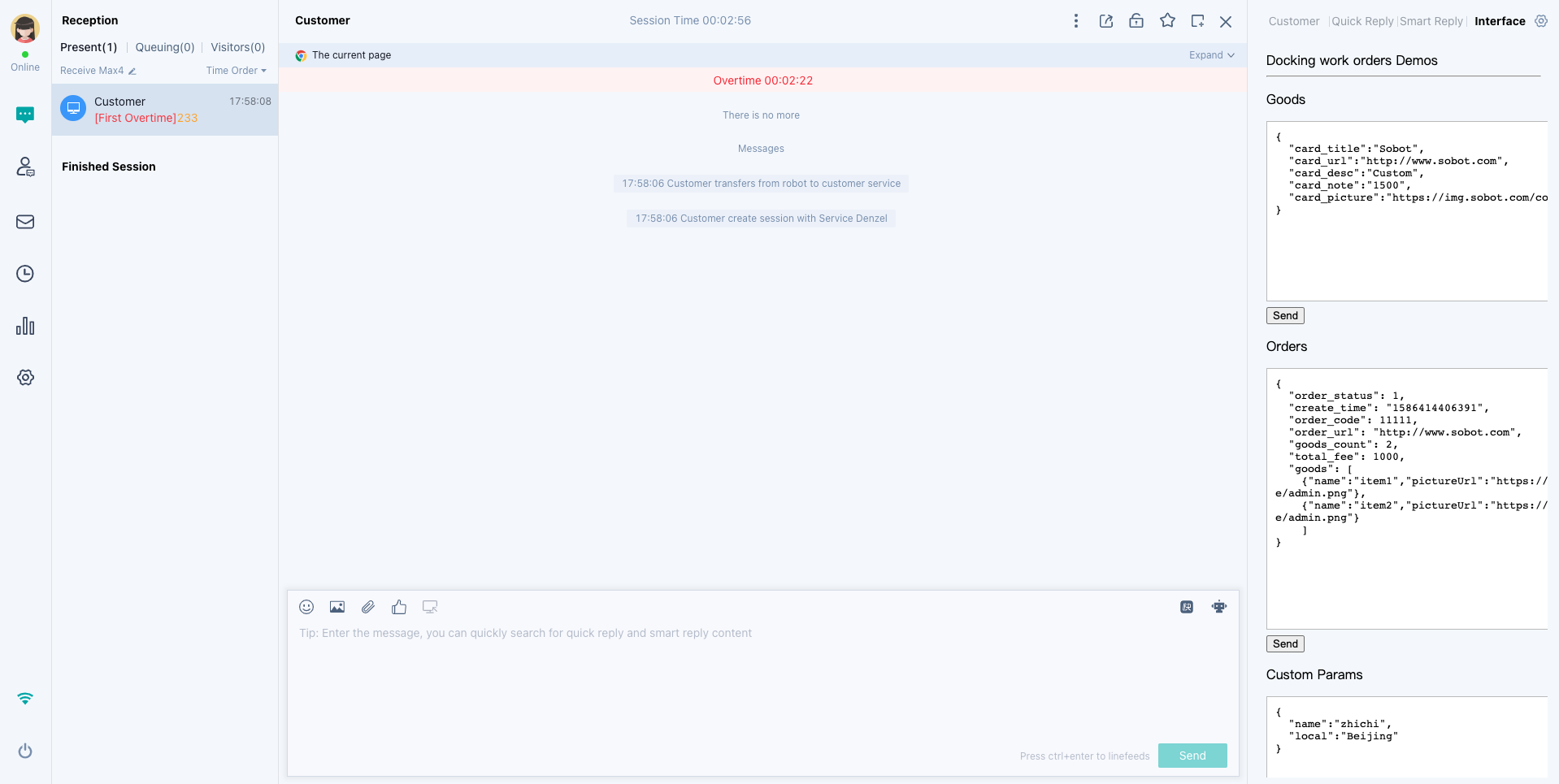
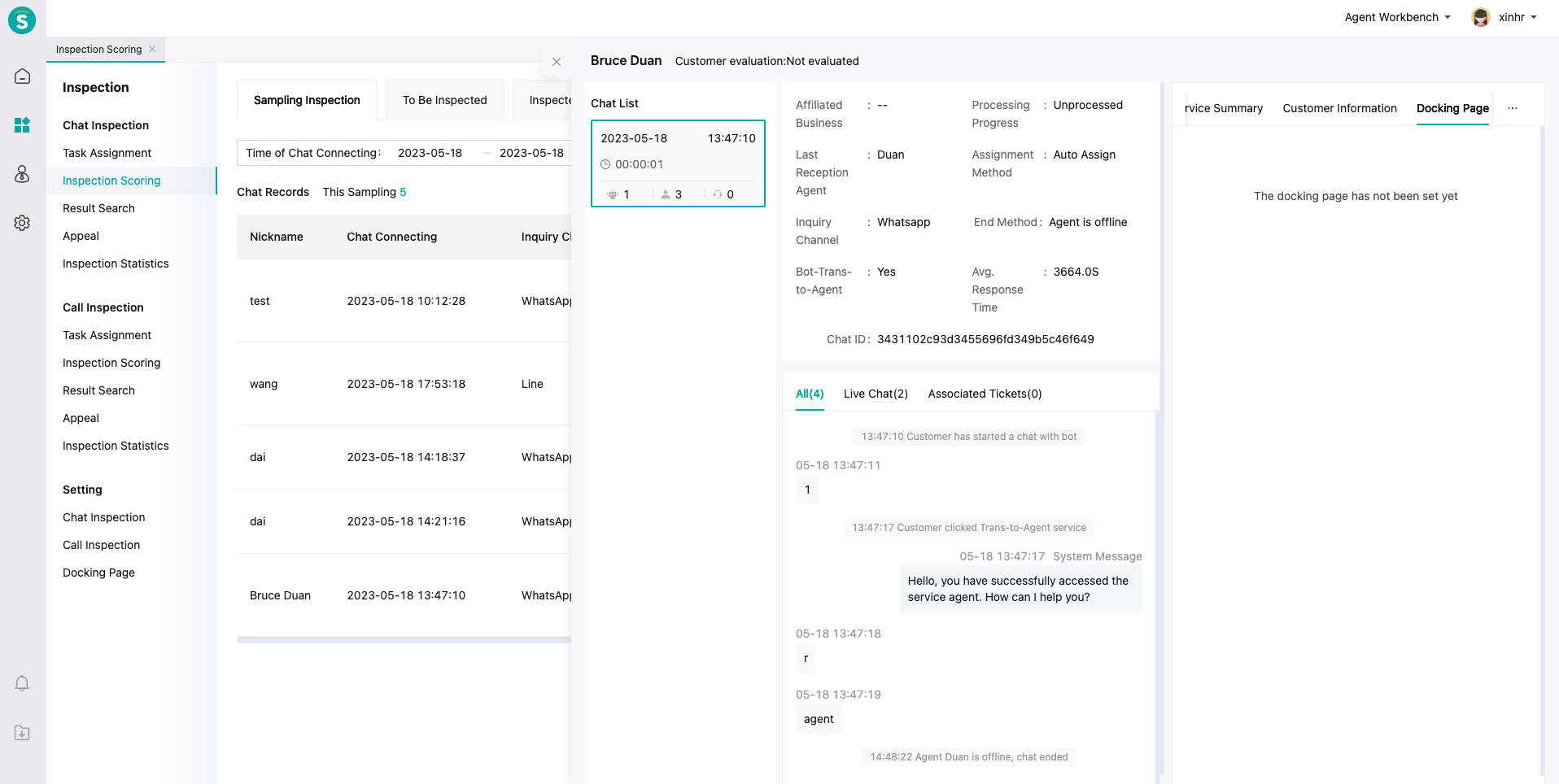
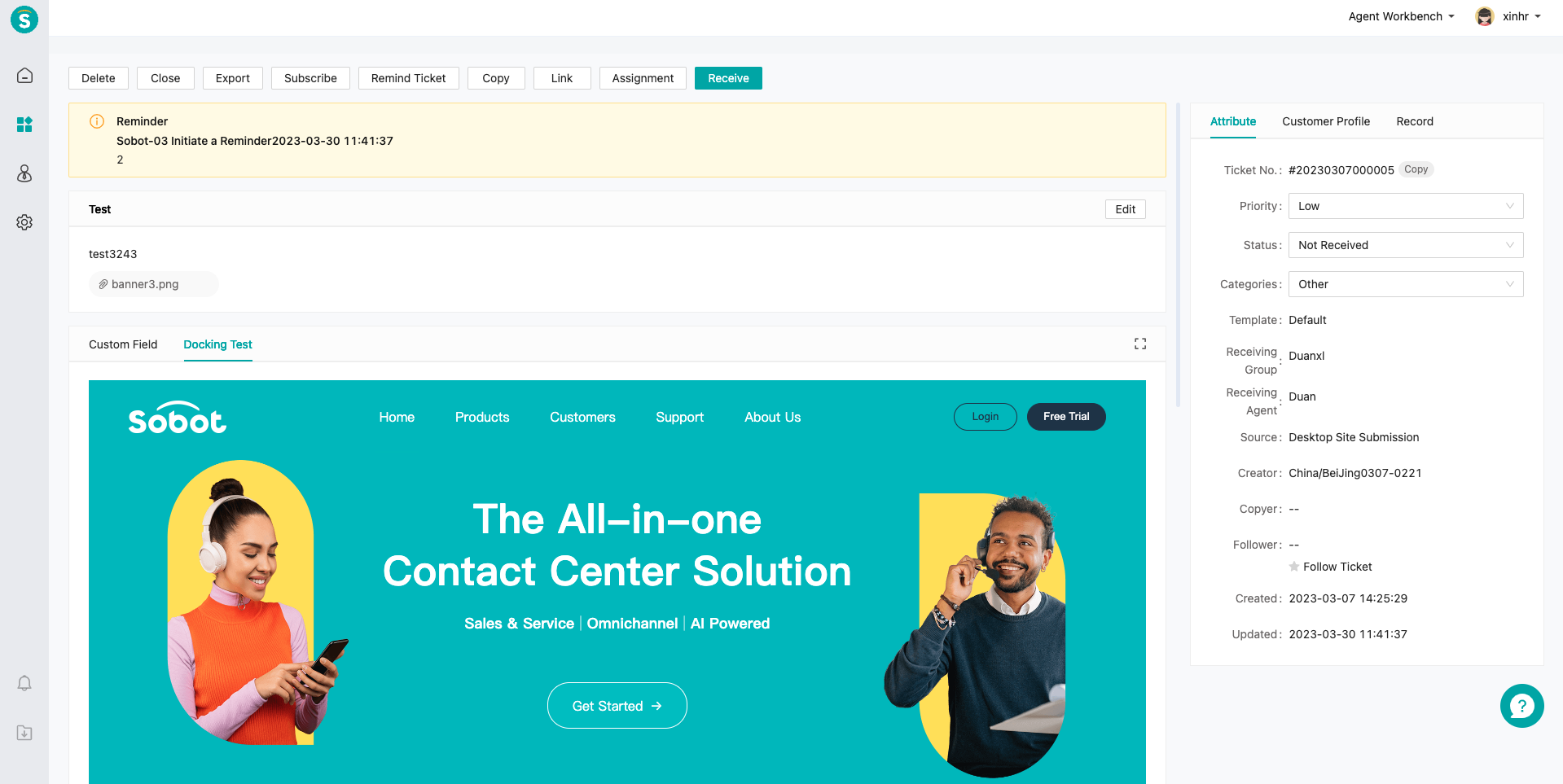
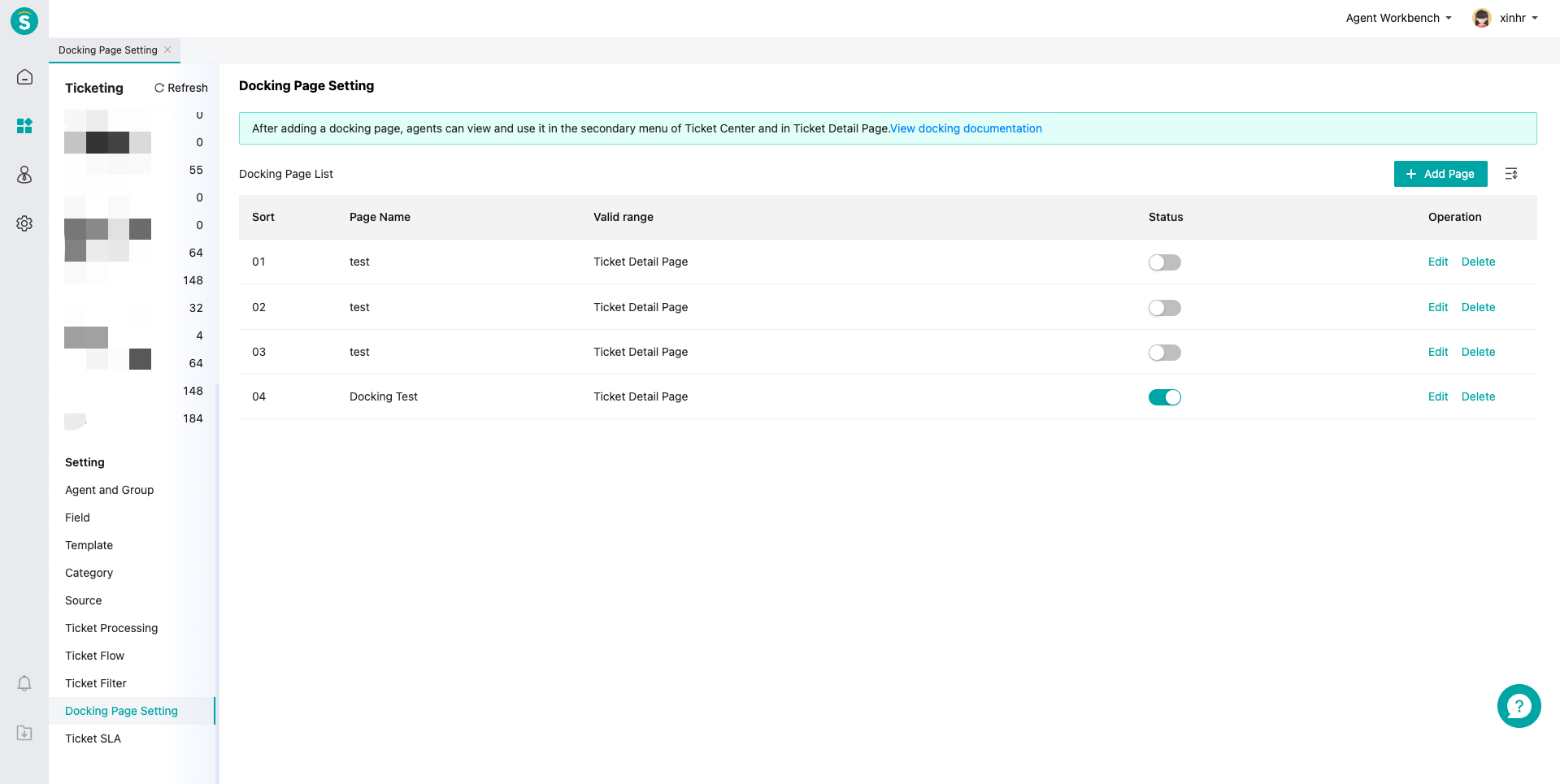
When an agent requests this page, it will add the user docking ID, agent e-mail, security verification code and other information to the URL of the business operation page so that the enterprise can conduct security verification and display the user-related business information according to the user's identity.
When transmitting sensitive information, you can use security key function. Security key function can provide you a higher security protection level. sign corresponding to the function is as follows
When requesting this page at the agent workbench, the passed fields include:
| Field | Description |
|---|---|
| partnerId | Docking ID, the inquirer's ID in the third-party system. Enterprises shall pass the ID to Sobot upon integrating chat pages |
| Current agent's login e-mail | |
| sign | The md5 verification code of the enterprise ID and agent email, sign=md5(sysNum+email) (after the security key is enabled) sign=MD5 (sysNum+key+timestamp+ partnerId) If the partnerId is null, you don't have to add it to the sign |
| timestamp | Timestamp (long, millisecond timestamp) |
| createChatTime | Timestamp (long, millisecond timestamp) |
| uid | Inquirer's user ID in Sobot system |
| cid | The corresponding chat ID for this inquiry |
| params | Custom profile field |
| groupId | Reception agent skill group ID |
| groupName | Reception agent skill group name |
| ip | IP address |
Note: When you switch the user list on the left side of the workbench, we will update the src attribute of iFrame, but the src attribute update of iFrame will not automatically refresh the embedded docking page. At this time, we will give a postMessage. You can monitor it on the docking page. PostMessage monitoring name: selected
# Two Docking Methods
# ● Concatenate params to the 3rd-party docking URL (default)
url?¶ms={"key":"value"}&partnerid=zc&uid=xxx
# ● Pass params to the 3rd-party docking page via postMessage. The customer gets the params by monitoring this request
When the docking page content is too much and the logic is too complex, this method is recommended, and the docking page will not be refreshed
window.addEventListener('message', function(event){

  /*
  ** Data of event.data
  ** name: "selected",
  ** query:urlObj, // urlObj refers to the default params that we will pass via this field
  ** params, // params refers to params field docked at the chat customer side
  ** partnerId,
  ** visitData: {
  **     uid
  **  }
  */

  console.log(`The docking page receives params in the form of postmessage: ${JSON.stringify(event.data)}`);
 })
2
3
4
5
6
7
8
9
10
11
12
13
14
15
When requesting this page on the Call Center V1 - Talk Record - Talk Details Page and Call Workbench, the passed fields include:
| Field | Name |
|---|---|
| partnerId | Docking ID, the customer ID in the third-party system. Enterprises have to store this ID in the customer file of the Sobot CRM in advance. In the talk details UI, Sobot will pass this ID to enterprises' iframe page (used to associate more customer information in the third-party system). |
| callId | Current talk's unique ID |
| Current agent's login e-mail | |
| sign | The md5 verification code of the enterprise ID and agent email, sign=md5(sysNum+email) (after the security key is enabled) sign=MD5 (sysNum+key+ timestamp + uphone+uemail) If the uphone or uemail is null, you don't have to add it to the sign |
| timestamp | Timestamp (long, millisecond timestamp) |
| uid | If the phone no. belongs to a known user, it shall be the user's ID in Sobot system |
| uphone | Customer phone no. in this talk |
| uemail | If the e-mail belongs to a known user, it shall be the user's first e-mail in Sobot system |
| ivrPath | ivr tracking is a json string; navKey is ivr key; navName is the ivr key name; |
| province | Phone no. province is a string |
| city | Phone no. city is a string |
If you do not want special chars in the iFrame URL (e.g., [] chars in the ivr tracking param ivrPath), you can add the code ID param zc_encode in the Settings - Docking Page Setting. When the param is 1, the param after '?' in the docking URL will be encoded as a whole with encodeURIComponent. Upon use, get the param after ‘?’ for deoding with decodeURIComponent. The param is only valid on Call Center - Talk Record - Talk Details Page. Docking page setting example: https:// www.sobot.com?zc_encode=1
When requesting this page on the Call Center V1 - My Task - Task Details Page, the passed fields include:
| Field | Name |
|---|---|
| Current agent's login e-mail | |
| sign | The md5 verification code of the enterprise ID and agent email, sign=md5(sysNum+email) (after the security key is enabled) sign=MD5 (sysNum+key+ timestamp + uphone+uemail) If the uphone or uemail is null, you don't have to add it to the sign |
| timestamp | Timestamp (long, millisecond timestamp) |
| uid | If the phone no. belongs to a known user, it shall be the user's ID in Sobot system |
| uphone | Phone no. in this talk |
| uemail | If the e-mail belongs to a known user, it shall be the user's first e-mail in Sobot system |
When requesting this page on the Call Center V6 - Agent Workbench - Call Center - Talk Details Page, the passed fields include:
| Field | Name |
|---|---|
| partnerId | The customer ID in the third-party system. Enterprises have to store this ID in the customer file of the Sobot CRM in advance. In the talk details UI, Sobot will pass this ID to enterprises' iframe page (used to associate more customer information in the third-party system). |
| uid | Current talk record user ID (it's null if the current talk is not bound with any user) |
| uemail | Current talk customer email (it's null if the user doesn't bind email) |
| Current login user's agent email | |
| sign | The md5 verification code of the enterprise ID and agent email, sign=md5(sysNum+email) (after the security key is enabled) sign=MD5 (sysNum+key+ timestamp + uphone+uemail) If the uphone or uemail is null, you don't have to add it to the sign |
| timestamp | Timestamp (long, millisecond timestamp) |
| uphone | Customer phone no. in the current talk (after encryption is enabled, the number is displayed in an encrypted way, e.g. 158****2496) |
| encryptUphone | Customer phone no. in this talk, encrypted phone no. |
| gatewayNumber | Relay No. |
| callType | Call type (2-Inbound, 3-Outbound, 4-Inquiry) |
| callId | Main ID of talk records |
| province | Province |
| city | City |
| startTime | Call start time (long, millisecond timestamp) |
| Custom param | The docking page params can be used to pass custom data configured by enterprise. Custom data can be configured in the V6 Management Workbench - Call Center - System Docking. |
Note:
1. When passing customer phone no., the no. may be an encrypted no., which can be judged by the encryptUphone field:
When encryptUphone is null, it means that encryption is not enabled, and uphone is the user's true plaintext phone no.;
When encryptUphone is not null, it means that encryption is enabled, and uphone is a masked phone no. (e.g. 158****1234). For the latter, you cannot use it directly unless you read the encrypted no. in the encryptUphone field and use 「customer phone no. key」 to decrypt it into plaintext no. (acquire the 「customer phone no. key」 by 「Admin Console - Admin Center - Key Management - Customer Phone No. Key」).
2. The system has already encoded the params after ? in the iFrame URL as a whole with encodeURIComponent. When reading params in the docking page, simply run decodeURIComponent on the content after ? to restore them.
// Decode example: in the docking iframe page, get the params after ? from the current page URL and decode
// iframe src format: https://your-domain.com?<params encoded with encodeURIComponent>
const encodedParams = window.location.search.slice(1); // remove the leading ?
if (encodedParams) {
  const decodedParams = decodeURIComponent(encodedParams);
  const params = new URLSearchParams(decodedParams);
  // Example: get the ivrPath param
  // const ivrPath = params.get('ivrPath');
}
2
3
4
5
6
7
8
9
When requesting this page on the Call Center V6 - Agent Workbench - Call Center - Outbound Task - Task Details Page, the passed fields include:
| Field | Name |
|---|---|
| partnerId | The customer ID in the third-party system. Enterprises have to store this ID in the customer file of the Sobot CRM in advance. In the talk details UI, Sobot will pass this ID to enterprises' iframe page (used to associate more customer information in the third-party system). |
| uid | Current talk record user ID (it's null if the current talk is not bound with any user) |
| uemail | Current talk customer email (it's null if the user doesn't bind email) |
| Current login user's agent email | |
| sign | The md5 verification code of the enterprise ID and agent email, sign=md5(sysNum+email) (after the security key is enabled) sign=MD5 (sysNum+key+ timestamp + uphone+uemail) If the uphone or uemail is null, you don't have to add it to the sign |
| timestamp | Timestamp (long, millisecond timestamp) |
| uphone | Customer phone no. in the current talk (after encryption is enabled, the number is displayed in an encrypted way, e.g. 158****2496) |
| encryptUphone | Customer phone no. in this talk, encrypted phone no. |
| province | Province |
| city | City |
Note: when passing customer phone no., the no. may be an encrypted no., which can be judged by the encryptUphone field:
When encryptUphone is null, it means that encryption is not enabled, and uphone is the user's true plaintext phone no.;
When encryptUphone is not null, it means that encryption is enabled, and uphone is a masked phone no. (e.g. 158****1234). For the latter, you cannot use it directly unless you read the encrypted no. in the encryptUphone field and use 「customer phone no. key」 to decrypt it into plaintext no. (acquire the 「customer phone no. key」 by 「Admin Console - Admin Center - Key Management - Customer Phone No. Key」).
# V6 Agent Workbench - postMessage Parameters
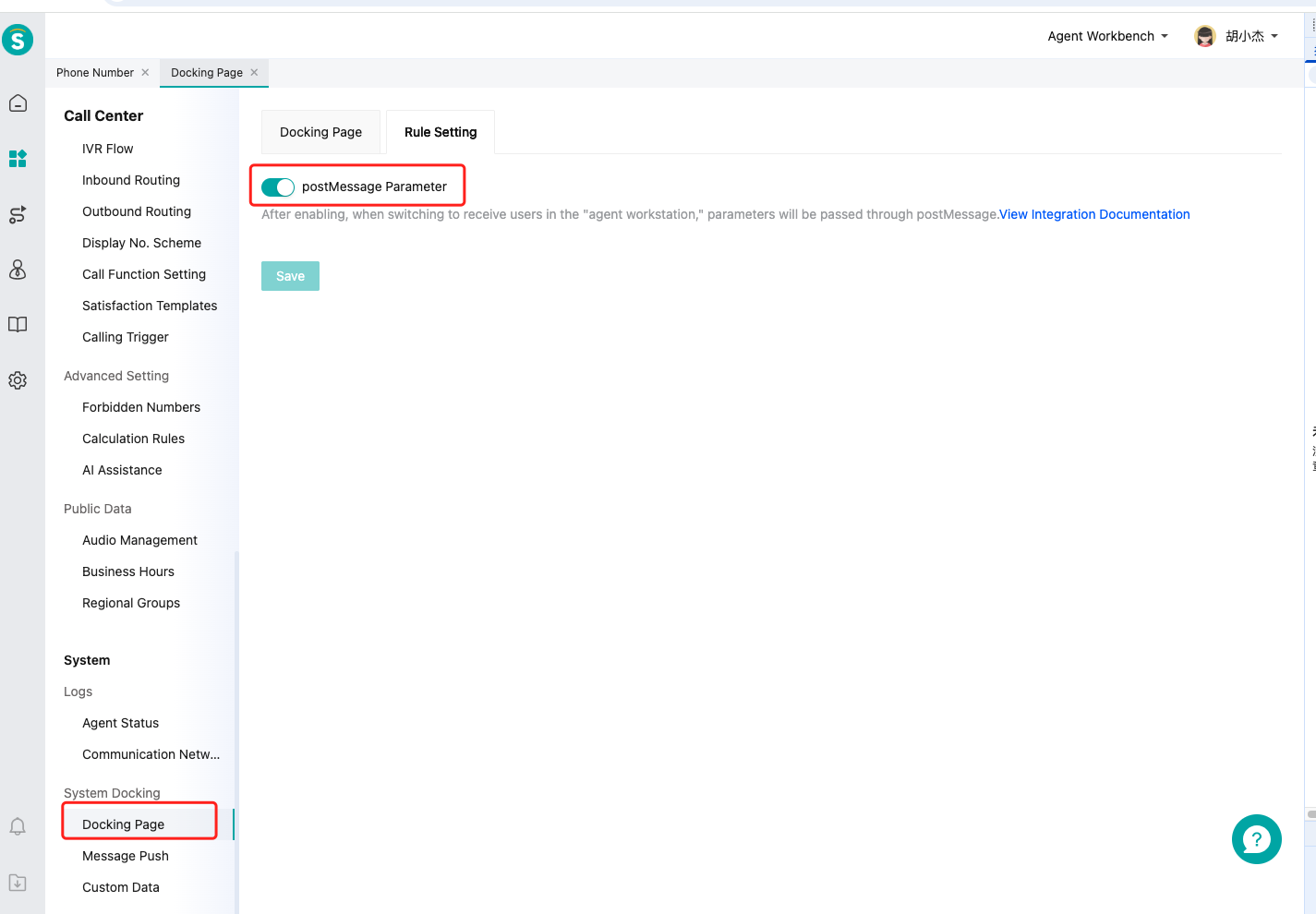
After enabling postMessage Parameter in Admin Workbench → Call Center → System Docking → Docking Page → Rule Setting and clicking Save, in addition to the URL parameters above, the agent workbench will deliver messages to two types of recipients via postMessage:
- Embedded docking iframe page: receives
iframeParams(talk details parameters) - Agent workbench parent page (the outer business system page that embeds the entire agent workbench): receives
iframeParamsandcallBarEvent(phone bar events)
When the switch is off, the above messages will not be delivered.
Message Structure
The message format received by the docking page and the agent workbench parent page is the same. The event.data structure is as follows:
| Field | Type | Description |
|---|---|---|
| source | String | Fixed as agentCall, indicating the source is the Call Center agent workbench |
| type | String | iframeParams or callBarEvent |
| params | Object | Payload, see details in the sections below |
Note: If there is existing postMessage listening logic, you must distinguish it via the
sourcefield to avoid interfering with existing functionality.
● Embedded docking iframe page receives iframeParams
The agent workbench delivers the current talk details to the docking page. The params fields are consistent with the Call Center V6 - Agent Workbench - Call Center - Talk Details parameter table above. The docking page only receives iframeParams and will NOT receive callBarEvent.
Listening example:
window.addEventListener('message', function(event) {
  const { source, type, params } = event.data || {}
  if (source !== 'agentCall' || type !== 'iframeParams') return
  // params fields: see Call Center V6 - Agent Workbench - Call Center - Talk Details parameter table
  console.log(params.callId, params.uphone, params)
})
2
3
4
5
6
SPA / Proactively requesting params
The agent workbench automatically delivers iframeParams multiple times after the docking page loads. Plain HTML pages can receive it directly. If you use an SPA framework (Vue/React, etc.) causing the listener to register late, or if you need to re-fetch params after a route change, you can proactively send the following messages. The agent workbench will immediately re-deliver the latest iframeParams upon receiving them:
// Declare ready after listener is registered (recommended to send in mounted / DOMContentLoaded)
window.parent.postMessage({ source: 'agentCall', type: 'IFRAME_READY' }, '*')

// Request params proactively at any time (suitable after SPA route change or when a refresh is needed)
window.parent.postMessage({ source: 'agentCall', type: 'REQUEST_IFRAME_PARAMS' }, '*')
2
3
4
5
● Agent workbench parent page receives iframeParams and callBarEvent
If the enterprise embeds the entire agent workbench into their own business system (i.e., the agent workbench runs in an iframe of the outer page), the outer page can monitor both types of messages and differentiate by the type field:
window.addEventListener('message', function(event) {
  const { source, type, params } = event.data || {}
  if (source !== 'agentCall') return

  if (type === 'iframeParams') {
    // Talk details params, see Call Center V6 - Agent Workbench - Call Center - Talk Details parameter table
    console.log(params.callId, params.uphone, params)
  }

  if (type === 'callBarEvent') {
    // Phone bar event, params.messageID is the event type, see table below
    console.log(params.messageID, params)
  }
})
2
3
4
5
6
7
8
9
10
11
12
13
14
callBarEvent is reported by the agent workbench to its parent page. The docking page will NOT receive this message. If the docking page also needs to be aware of call status, the agent workbench parent page should listen and forward it.
After enabling "postMessage Parameter", the agent workbench parent page can receive the following messageID events. For full field definitions, see Call Events (TS):
EventAgentReady / EventAgentNotReady / EventAgentLogin / EventAgentLogout / EventAgentConnectionChanged / EventUnreachable / EventUnregistered / EventDialing / EventRinging / EventEstablished / EventReleased / EventCallDeleted / EventPartyChanged / EventPartyDeleted
EventEstablished parameter difference: params merges the following extension fields on top of the standard Body:
| Field | Description |
|---|---|
| province | Province |
| city | City |
| lastDistributedQueueUUID | Last queued skill group id |
| lastDistributedQueueId | Last queued skill group number |
| lastDistributedQueueName | Last queued skill group name |
| firstDistributedQueueUUID | First queued skill group id |
| firstDistributedQueueId | First queued skill group number |
| firstDistributedQueueName | First queued skill group name |
For detailed field definitions of each event, see Call Events (TS). Talk-type events contain callID, which can be correlated with callId in iframeParams for the same call.
Notes
- Field authority: Event body fields are subject to Call Events (TS); talk detail parameter fields are subject to the parameter table above.
- Encrypted phone no.: The rules for
uphone/encryptUphoneare consistent with the URL parameter description, and decryption requires the customer phone no. key. - Multiple postMessage coexistence: If there is existing postMessage listening, you must distinguish by
sourceandtypeto ensure existing functionality works properly.
When requesting this page on the Ticket Center - Ticket Details Page, the passed fields include:
| Field | Name |
|---|---|
| Current agent's login e-mail | |
| sign | The md5 verification code of the enterprise ID and agent email, sign=md5(sysNum+email) (after the security key is enabled) sign=MD5 (sysNum+key+ timestamp + uphone+uemail) If the uphone or uemail is null, you don't have to add it to the sign |
| timestamp | Timestamp (long, millisecond timestamp) |
| uid | If the phone no. belongs to a known user, it shall be the user's ID in Sobot system |
| uphone | Customer phone no. |
| uemail | Customer's first email in Sobot system |
| ticketId | Ticket ID |
When requesting this page on the CRM - Customer Details Page, the passed fields include:
| Field | Name |
|---|---|
| partnerId | Docking ID, the inquirer's ID in the third-party system. Enterprises shall pass the ID to Sobot upon integrating chat pages |
| Current agent's login e-mail | |
| sign | The md5 verification code of the enterprise ID and agent email, sign=md5(sysNum+email) (after the security key is enabled) sign=MD5 (sysNum+key+ timestamp + uphone+uemail) If the uphone or uemail is null, you don't have to add it to the sign |
| timestamp | Timestamp (long, millisecond timestamp) |
| uid | User ID in Sobot system |
| uphone | User's first phone no. in Sobot system |
| uemail | User's first email in Sobot system |
When requesting this page on the Inspection - Inspection Details Page, the passed fields include:
| Field | Name |
|---|---|
| partnerId | Docking ID, the inquirer's ID in the third-party system. Enterprises shall pass the ID to Sobot upon integrating chat pages |
| Current agent's login e-mail | |
| sign | The md5 verification code of the enterprise ID and agent email, sign=md5(sysNum+email) (after the security key is enabled) sign=MD5 (sysNum+key+ timestamp + uphone+uemail) If the uphone or uemail is null, you don't have to add it to the sign |
| timestamp | Timestamp (long, millisecond timestamp) |
| uid | Inquirer's user ID in Sobot system |
| cid | The corresponding chat ID for this inquiry |
| uphone | User's first phone no. in Sobot system |
| uemail | User's first email in Sobot system |
When requesting this page on the Chat Monitoring Page, the passed fields include:
| Field | Name |
|---|---|
| partnerId | Docking ID, the inquirer's ID in the third-party system. Enterprises shall pass the ID to Sobot upon integrating chat pages |
| Current agent's login e-mail | |
| sign | The md5 verification code of the enterprise ID and agent email, sign=md5(sysNum+email) (after the security key is enabled) sign=MD5 (sysNum+key+ timestamp + uphone+uemail) If the uphone or uemail is null, you don't have to add it to the sign |
| timestamp | Timestamp (long, millisecond timestamp) |
| uid | Inquirer's user ID in Sobot system |
| cid | The corresponding chat ID for this inquiry |
| uphone | User's first phone no. in Sobot system |
| uemail | User's first email in Sobot system |
# Integration Steps
# ● Step 1
When integrating agent chat pages, the user docking ID (partnerId) is passed in. If the business operation page developed by the enterprise needs to be associated with the user ID, this step is required; otherwise it is not required
# ● Step 2
The enterprise determines the function and interaction effect of the business operation page according to its own needs, and completes the development of the business operation page based on the development requirements of Sobot.
When the screen width is 1280 pixels, the following page sizes are recommended:
- Agent Workbench: docking page width should be <=300 pixels
- CRM: docking page width should be <=730 pixels, height <=500 pixels
- Call Center: docking page width should be <=790 pixels, height <=500 pixels
- It is recommended that the enterprise provide https URL. Otherwise if the agent accesses the Sobot Agent Workbench through https, the docking page will fail to open
# ● Step 3
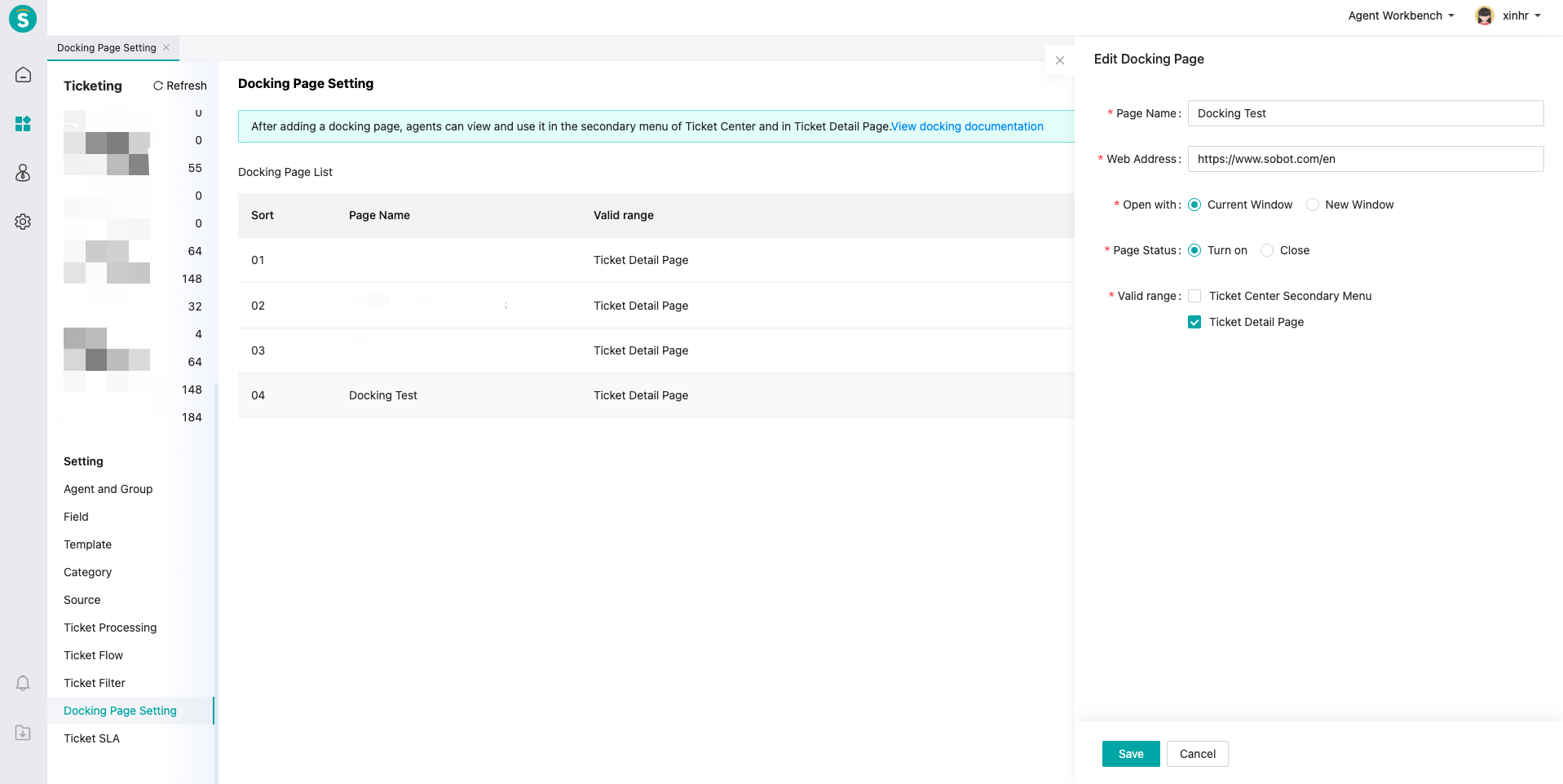
The enterprise admin can manually configure the docking menu name and docking page (it is recommended to configure https URL) in the Sobot admin backend. After the configuration is completed, the agent can use it after logging in to the workbench next time
# Technical documentation for livechat workbench postMessage
Note: postMessage takes effect only on the basis of interaction between the agent workbench and the docking page embedded in the workbench. It does not take effect if the workbench is not embedded or embedded in other pages. If you have previously docked other postMessage functions, you must distinguish them by name to ensure the normal use of the functions docked before.
Two types of interaction
The docking page receives postMessage posted by the workbench
The workbench receives postMessage posted back by the docking page
# ● The docking page monitors message
After a customer sends a message (only text message), agent can click the message to pass the message to the docking page
    window && window.onmessage = function(params){
    const {name,payload}=params.data||{}
    // name refers to the name to be monitored by "zc_msg_bubble_click"
    //payload {content:'hello world'}
    //content refers to the clicked text message
}
2
3
4
5
6
# ● Send postMessage to the workbench
In the process of receiving a customer, if agent wants to reply to the customer by a third-party quick reply or smart reply, agent can pass the message to the workbench by postMessage. Two ways of sending
Send the message directly to the customer through the workbench on the docking page, and keep the style of the original output (support html)
Send to the input box of the workbench, and only retain messages in the plain text format (only support text messages)
    /**
     * msgType Message type
     * 0-Image-text String
     * 1-Image  Only support url
     * 2-Audio  Only support url
     * 3-Video  Only support url
     * 4-File  Only support url
     */

    /**
     * content  Content to be sent   String Type
     */
    const payload={
        msgType:0,
        content:'hello zc',
        sendType:1, //1-Send directly 0-Display in the input box
        msgId:'xxxxx', //Entry ID  The unique identifier of each message (if any)
        name:'zc_msg_return_answer', //postMessage name   A fixed value
    }

    window && window.postMessage(payload,'*')
2
3
4
5
6
7
8
9
10
11
12
13
14
15
16
17
18
19
20
21
# Ticket Access
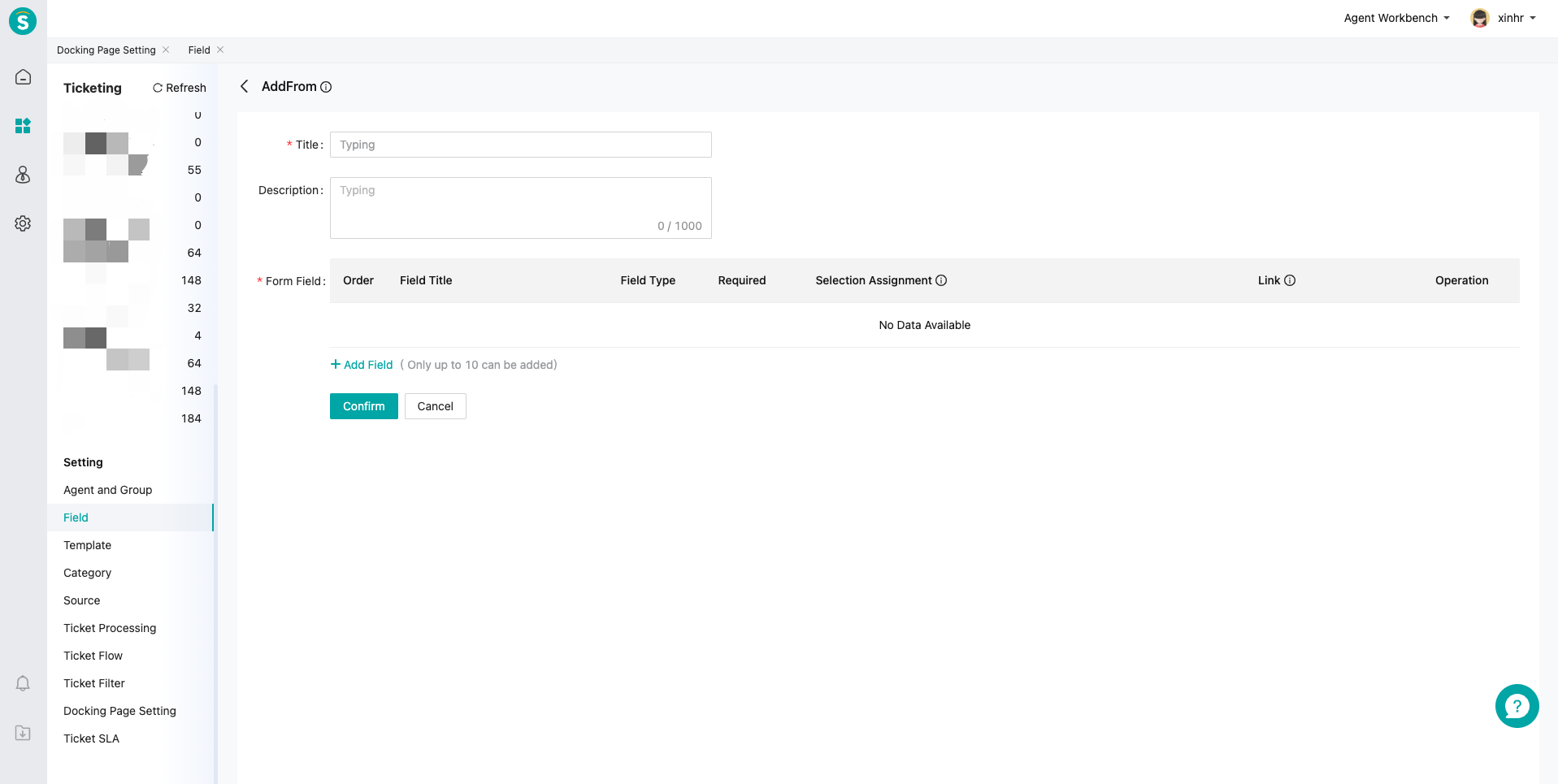
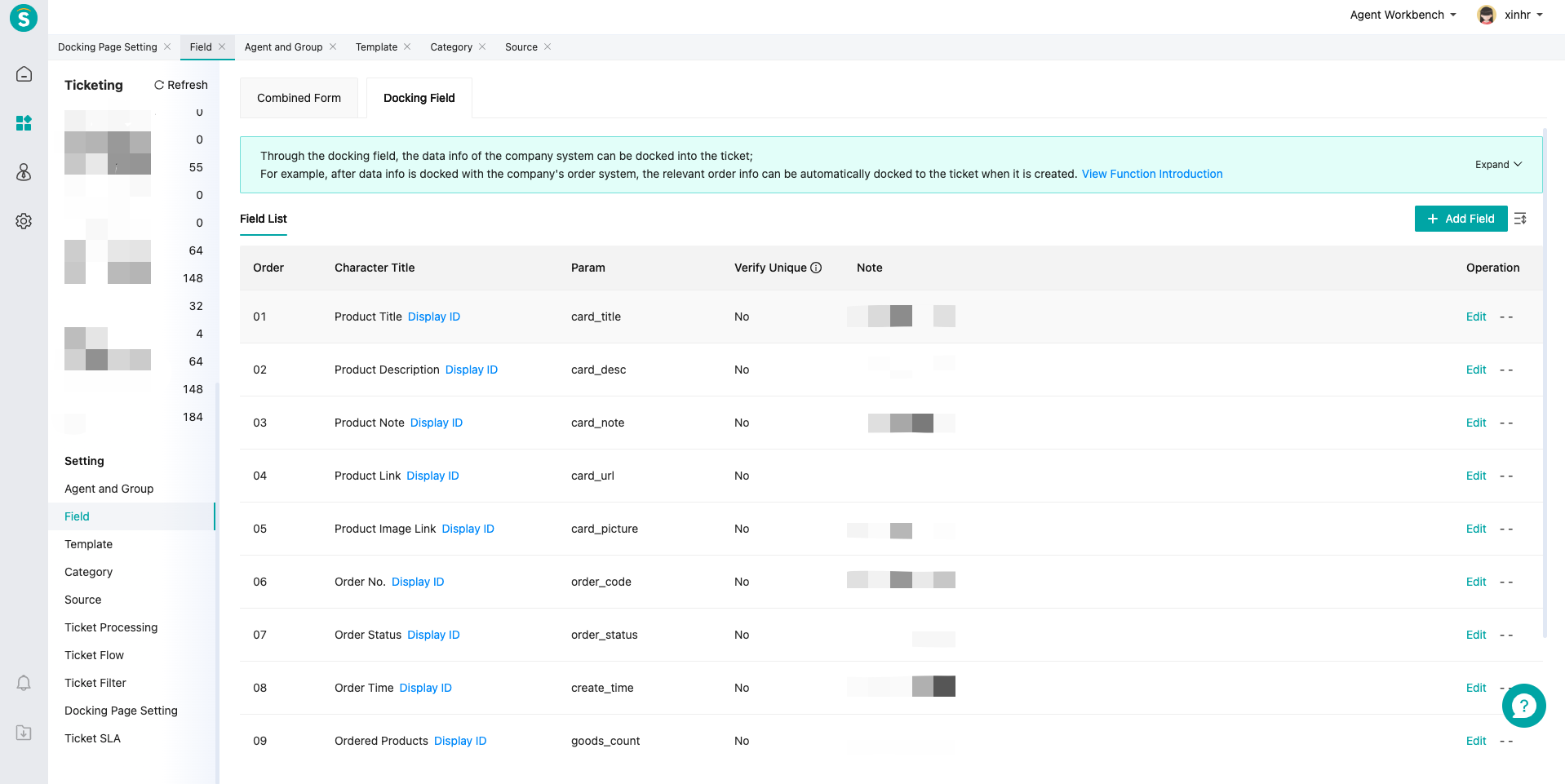
# ● First add custom field or directly use the default field
# ● Configure docking to Ticket Center
# ● Click the docking page on Ticket Center to send postMessage for communication and ticket creation
Note
The docking page params need to be strictly passed by developers according to the configured custom fields, as shown below
{
    "card*title":"Sobot",
    "card_url":"https:// www.sobot.com",
    "card_desc":"Sobot,Customer service software,Customer Contact Solution,Call center,Live chat,Contact center,Tickting system",
    "card_note":"1500",
    "card_picture":"https:// img.sobot.com/console/common/face/admin.png"
}
2
3
4
5
6
7
The passed data format must comply with JSON format
Passing method is postMessage. For example:
// type:"createOrder", it's required to pass in a fixed format
// params JSON format object, which is the param ID configured for custom field

window.parent.postMessage({
    type:”createOrder”,
    params:{
        "card*title":"Sobot",
    "card_url":"https:// www.sobot.com",
    "card_desc":"Sobot,Customer service software,Customer Contact Solution,Call center,Live chat,Contact center,Tickting system",
    "card_note":"1500",
    "card_picture":"https:// img.sobot.com/console/common/face/admin.png"
    }
},"*")
2
3
4
5
6
7
8
9
10
11
12
13
14
Implementation effect:
# Agent Sending Card
# ● Send order card
Send the order card to the customer by sending a postMessage to the agent workbench through the customer order system page docked with iFrame.
If the customer accesses through the mini program, the order card link sent by the agent needs to use the mini program page URL;
If the access channel is not a mini program, the order card link sent by the agent needs to start with http or https.
...
<button id="send">Send order info</button>
...
<!--
/**
*orderStatus Order status's enum value (the front end passes the corresponding number):
*To be paid: 1 ,
*To be delivered: 2 ,
*On the way: 3 ,
*Delivering: 4 ,
*Finished: 5 ,
*To be evaluated: 6 ,
*Canceled: 7
**/
/**
*  goods data structure
*[{
*  "name":"item 1",
* "pictureUrl":"http:// goodsPicture1 "
*  },{
*  "name":"item 1",
*  "pictureUrl":"http:// goodsPicture2 "
*  }]
**/
-->
<script>
document.getElementById("send").addEventListener("click",function () {
    var data = {
        orderStatus:1,// Order status
        statusCustom: " Custom Status", // When orderStatus=0, the field is used as the order card status
        createTime:+new Date(),// Order time  Timestamp
        orderCode:'88888888',// Order no.
        orderUrl:'http:// order.com/1 ',// Order link
        totalFee:'100',// Order amount (total_fee=1000 is equivalent to total_fee=10.00, decimals are not supported)
        goodsCount:2,// Product quantity
        goods:JSON.parse(getValue('goods'))
    };
    window.parent.postMessage({
        cid: ' 111111 ',
        uid: ' 222222 ',
        msgType: 25 ,  // Fixed value
        miniPage:JSON.stringify(data)
    }, '*');
},false);
</script>
2
3
4
5
6
7
8
9
10
11
12
13
14
15
16
17
18
19
20
21
22
23
24
25
26
27
28
29
30
31
32
33
34
35
36
37
38
39
40
41
42
43
44
45
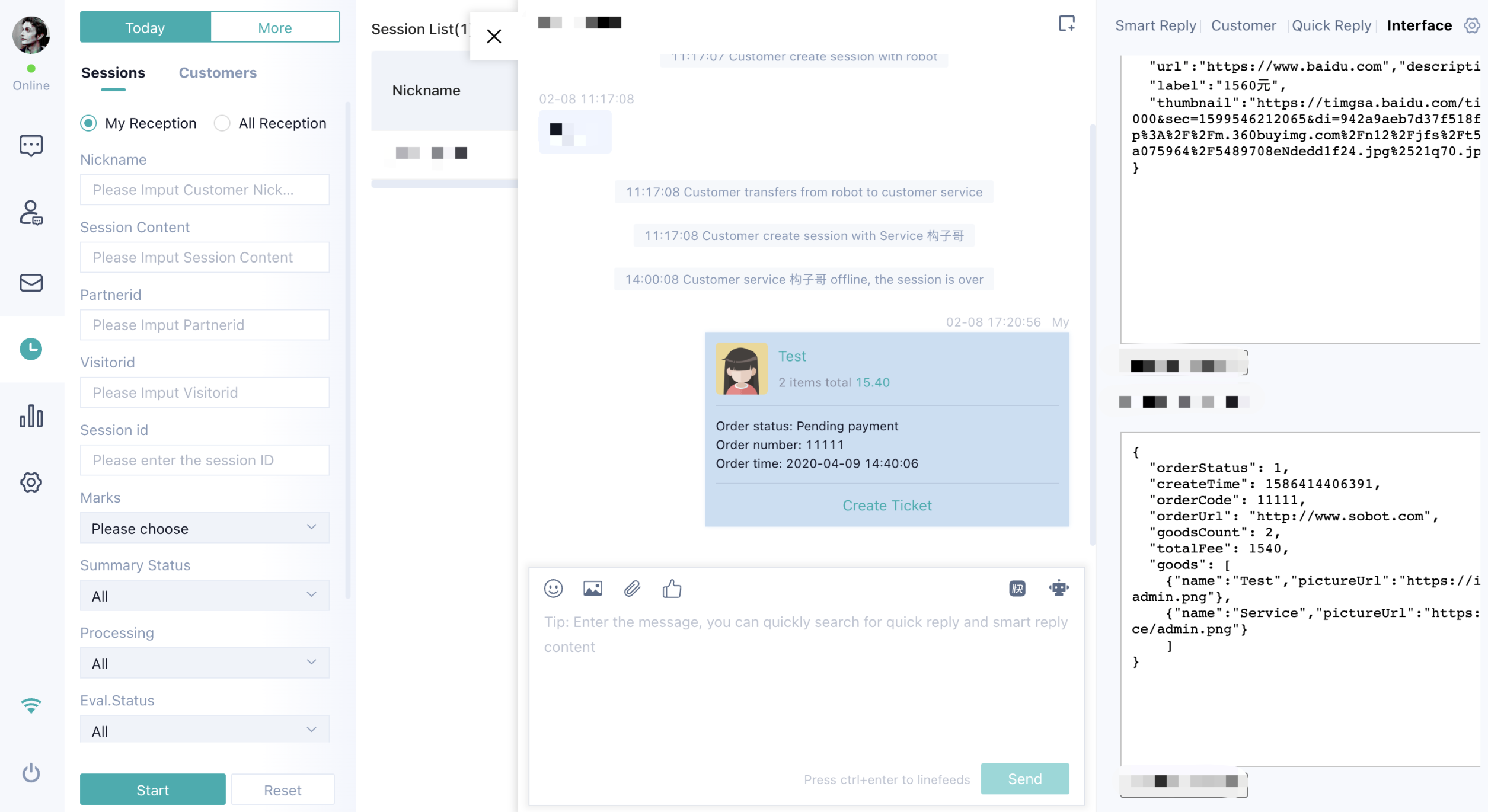
For example: 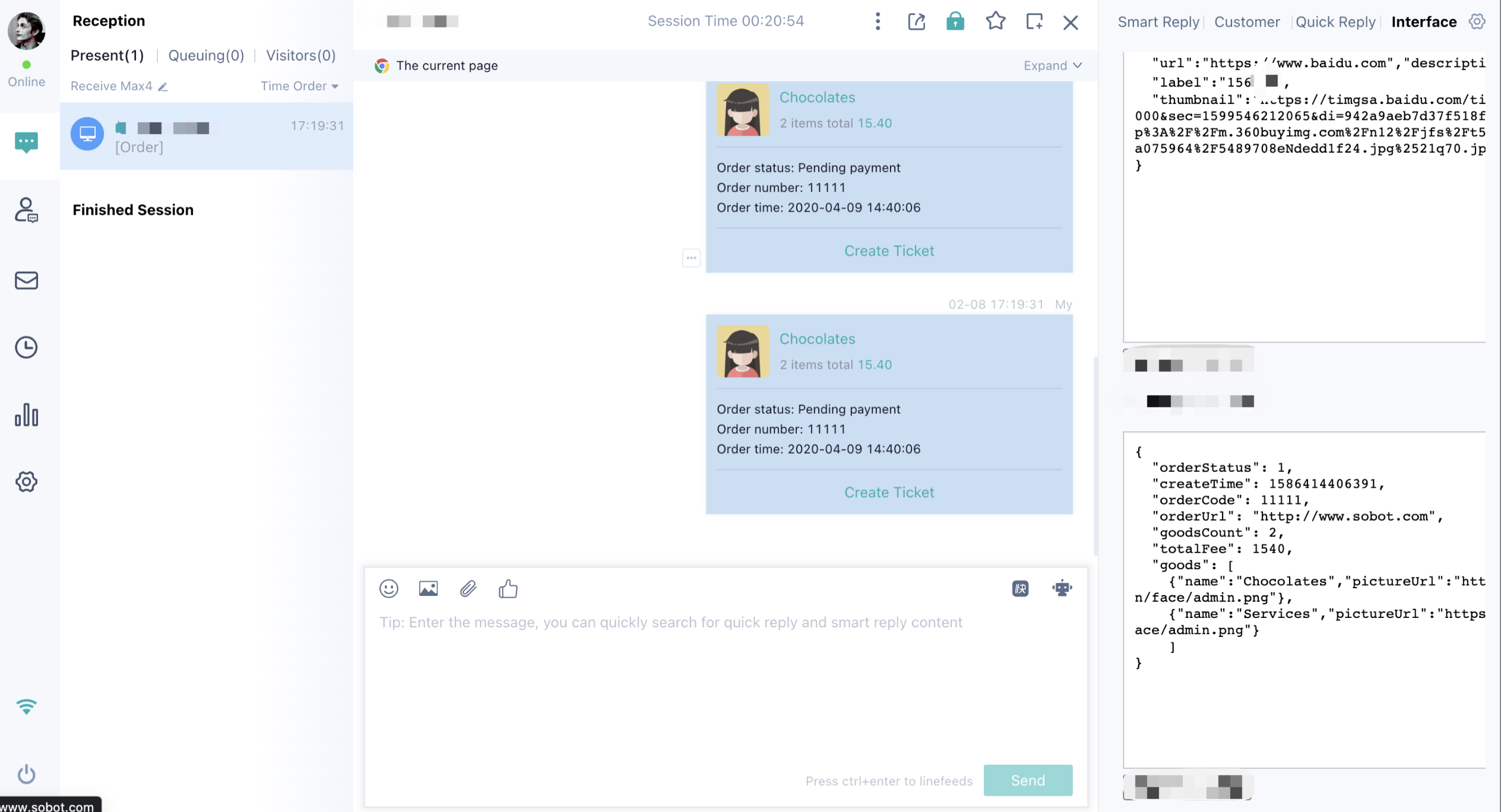
# ● Send product card
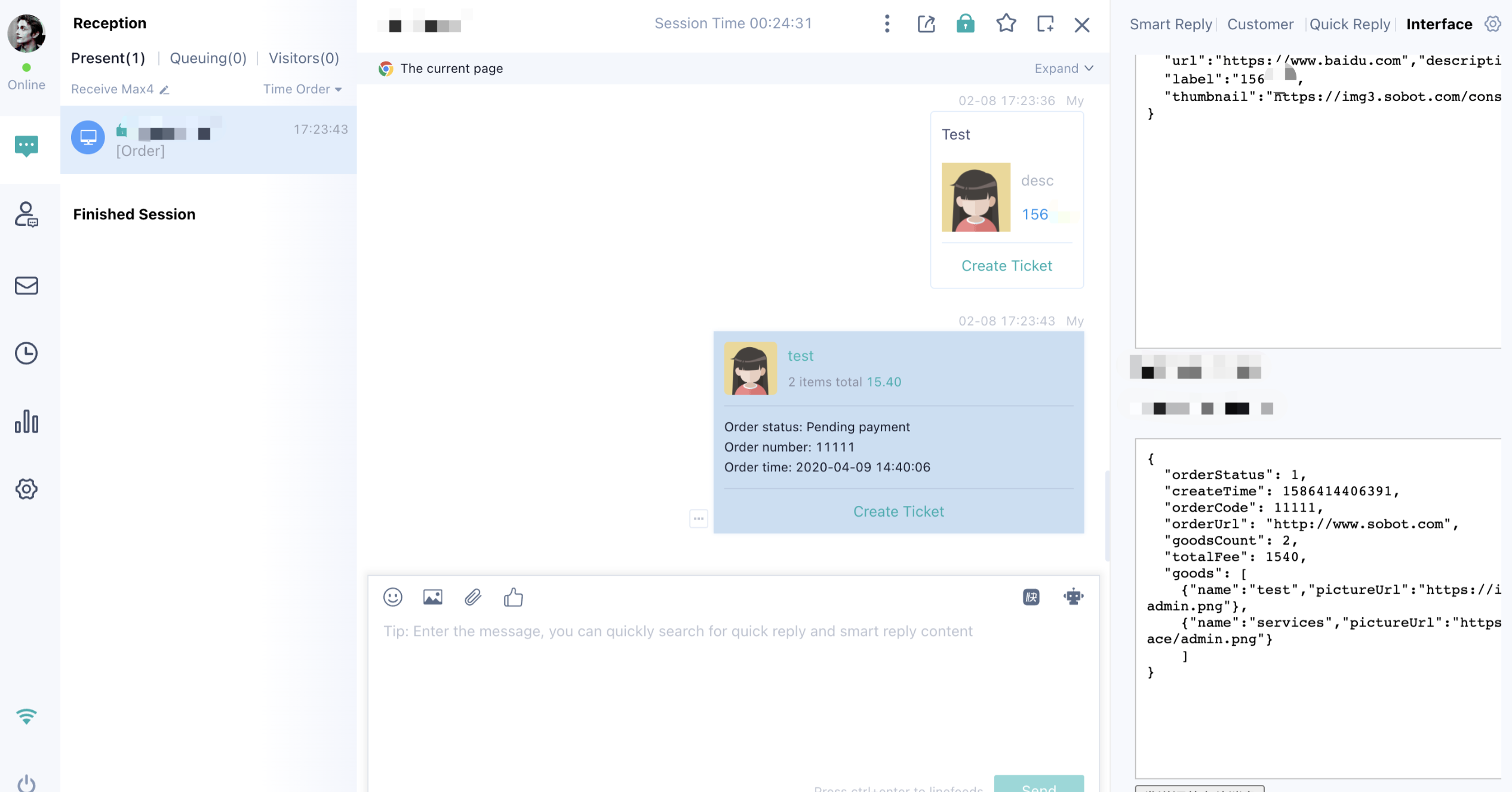
Product links support jump link and mini program page link
Jump link: It must start with http or https; otherwise it cannot be opened at the workbench. (It is recommended to use encodeURIComponent to escape the link)
Mini program page link: Only support opening on WeChat
...
<button id="send">Send product info</button>
...
<script>
document.getElementById("send").addEventListener("click",function () {
    window.parent.postMessage({
      cid: "",
      uid: "",
      msgType: 24 , // Fixed value
      miniPage:JSON.stringify({"title":"Sobot","url":"https:// www.baidu.com","description":"What's a good compony!" ,"label":"100 years old","thumbnail":"https:// img.sobot.com/chatres/dd67a23fdac54b8082b2dea3c5c30e82/msg/20190620/9583a4709ae147a690b459399d4afe57.png "})
    }, '*');
},false);
</script>
2
3
4
5
6
7
8
9
10
11
12
13
# WeCom iFrame
# ● Docking method
# 1. Concatenate params to the 3rd-party docking URL (default) url?companyId=xxx&wxUnionId=xxx&sign=xxx&tel=xxx&serviceId=xxx&serviceRoleId=xxx
# 2. When requesting this page on the WeCom Sidebar - Customer Profile, the passed fields include:
| Docking field | Description |
|---|---|
| corpId | Agent WeCom company ID |
| userId | Agent WeCom ID |
| partnerId | Customer external contact ID |
| serviceId | Agent ID |
| serviceRoleId | Agent role ID |
| wxUnionId | Customer third-party unionid |
| wxBuildUnionId | Customer self-built unionid |
| tel | Customer Phone No. |
| timeStamp | Timestamp |
| sign | The md5 verification code of the enterprise ID and agent email, sign=md5(sysNum+email) (after the security key is enabled) sign=MD5 (sysNum+key+ timestamp + uphone+uemail) If the uphone or uemail is null, you don't have to add it to the sign |
| uphone | User's first phone no. in Sobot system |
| uemail | User's first email in Sobot system |
| Current agent's login e-mail | |
| serviceTel | Agent phone no. |
Key query link
https:// yapi.zhichidata.com/project/731/interface/api/20279
url
/gateway/qywx-service/iframeConfigSecret/querySecret
requestHeader
temp-id
response
{
    "item": {
        "id": " 388ace6967f340a99c551f727fb21d9c ",// Key ID
        "corpId": " wwf890d4f585acb42a ",// WeCom company ID
        "companyId": " 0830d08fd74c429a8639e27405415778 ",// Company id
        "secret": " 39c3dd7e702140f692ef105d7eacb240 ",// Key
        "openFlag": 0,// Whether to enable key, 1: Yes, 0: No
        "iframeFlag": 0,// Whether to enable postMessage param passing, 1: Yes, 0: No
        "msgSearchDockingFlag": 0,// Whether to enable customer message retrieval docking, 1: Yes, 0: No
        "createTime":  1635322465 ,
        "updateTime":  1635322465
    },
    "retCode": "000000",
    "retMsg": "success"
}
2
3
4
5
6
7
8
9
10
11
12
13
14
15